Install List the Look on your phone
List the Look works like an app once it is added to your home screen. You get the full-screen, app-like experience without downloading anything from the App Store or Play Store. Pick your device below and follow the steps.
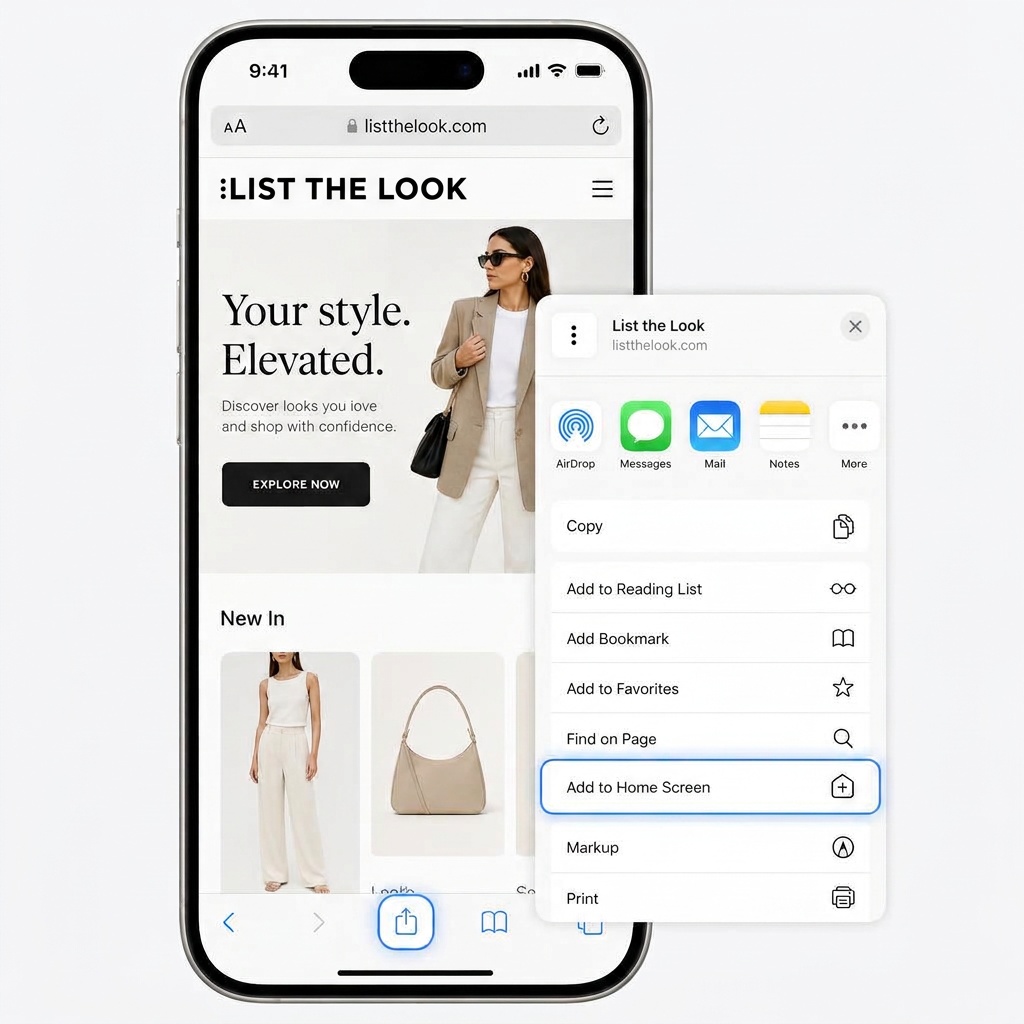
iPhone or iPad
Use Safari — other browsers on iOS cannot add home-screen apps.
Step 1. Open Safari and visit listthelook.com.
Step 2. Tap the Share button at the bottom of the screen (the square with an arrow).
Step 3. Scroll the share sheet and tap Add to Home Screen.
Step 4. Tap Add in the top-right corner. The app tile appears on your home screen.
Android phone or tablet
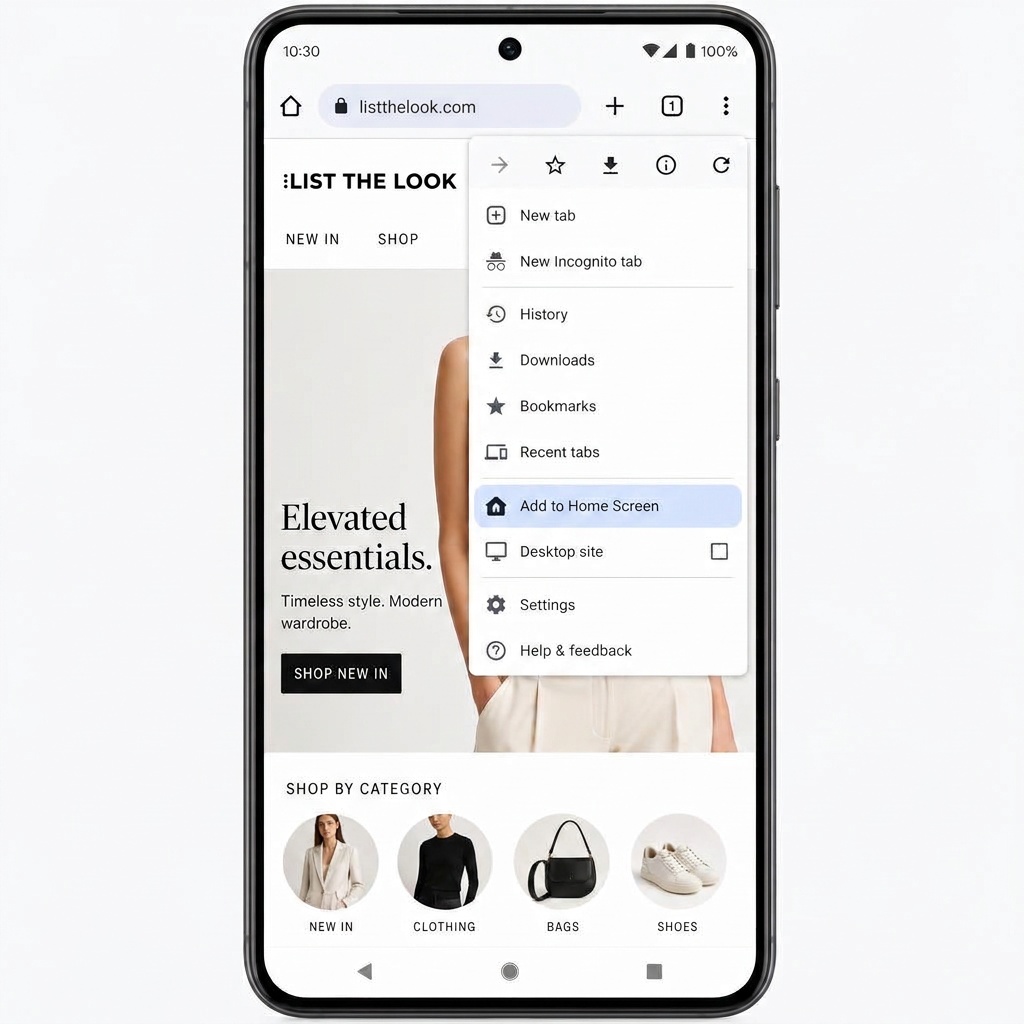
Use Chrome, Samsung Internet or most Android browsers.
Step 1. Open Chrome and visit listthelook.com.
Step 2. Tap the three-dot menu in the top-right corner.
Step 3. Tap Add to Home Screen or Install app.
Step 4. Tap Add/Install when prompted. The app tile appears on your home screen.
Why add it to your home screen?
- Opens full-screen, just like a native app.
- No download required and no storage used on your device.
- Tap the tile to jump straight back into the latest looks and pieces.
Troubleshooting
- I do not see Add to Home Screen on iPhone
- Make sure you are using Safari, not Chrome or another browser on iOS.
- The menu looks different on Android
- Some manufacturers rename the option. Look for Install app, Add to Home Screen or Add to screen inside the browser menu.
- The icon does not appear
- Try closing the browser completely and checking your home screen or app drawer. On some Android devices the shortcut is added to a folder.